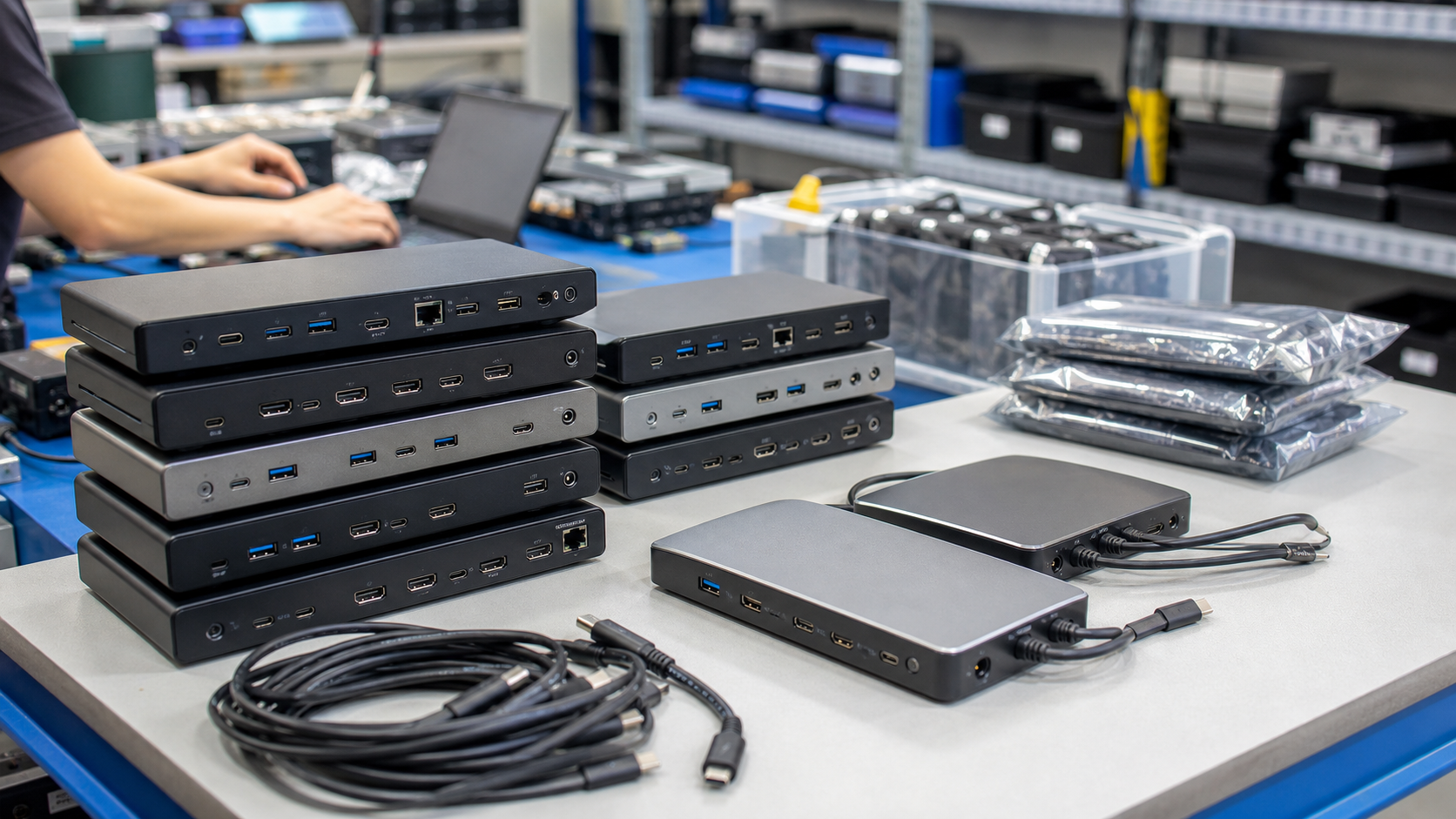
A used docking station looks like a simple accessory until it is sitting on 80 desks with the wrong power brick, the wrong host cable, or only one monitor working. For business buyers, docks are not just port expanders. They affect charging, displays, Ethernet, USB peripherals, firmware support, inventory matching, and the speed of the rollout.
TBR Trade Group helps buyers source tested used enterprise hardware, bulk computer parts, used business laptops, workstations, GPUs, servers, and affordable business electronics. Docking station requests are strongest when the buyer names the laptop fleet, dock model targets, monitor layout, wattage needs, cable and adapter expectations, condition grade, destination, and deployment deadline.
Start With the Desk Setup
The best dock is the one that matches the worker's actual desk. A call center station, engineering desk, school cart, front-desk reception area, lab bench, healthcare admin workspace, and hot-desk office do not need the same ports. Buying by model number alone can work when the laptop fleet is standardized. For mixed fleets, the dock requirements need more detail.
Before shopping by price, list what each desk needs to connect. That usually includes one or two monitors, keyboard, mouse, headset, Ethernet, printer, scanner, external storage, card reader, or legacy USB devices. Then define whether the dock must charge the laptop or whether laptops will use separate chargers.
- List the laptop brands, models, processor generations, operating systems, and USB-C or Thunderbolt port types.
- Define the monitor layout: one display, dual displays, resolution, refresh rate, HDMI, DisplayPort, USB-C, or adapters.
- State whether the dock must provide laptop charging, and if so, the wattage each laptop requires.
- Separate production desk kits from spare inventory, classroom carts, resale lots, and parts-only accessories.
USB-C Is a Connector, Not a Guarantee
USB-C is easy to misunderstand because the same oval connector can support very different capabilities. Some ports carry basic USB data. Some support charging. Some support DisplayPort Alt Mode. Some support USB4. Some support Thunderbolt. A dock may physically plug in and still fail to charge, fail to drive a second monitor, or run at lower data speeds than expected.
USB-IF says all cables do not have the same capabilities and that users are responsible for selecting certified cables with the capabilities needed for their environment. For used dock orders, that matters because the included host cable can be just as important as the dock body. A buyer should not approve a bulk lot based only on "USB-C dock" in the description.
- Ask whether each dock is USB-C, USB4, Thunderbolt 3, Thunderbolt 4, Thunderbolt 5, or vendor-specific.
- Confirm whether the host laptop port supports data, charging, DisplayPort Alt Mode, USB4, or Thunderbolt.
- Check the included USB-C cable rating for data speed and power, not just cable length.
- Do not mix USB-C and Thunderbolt assumptions unless the laptop, dock, and cable all support the target behavior.
Thunderbolt Docks Need Host Compatibility
Thunderbolt can be a strong choice for higher-end business desks because it carries data, video, and power over one cable. Intel describes Thunderbolt 4 as requiring 40 Gbps minimum bandwidth, PC charging up to 100 W, and dual 4K monitor support. Intel describes Thunderbolt 5 as moving to 80 Gbps bidirectional bandwidth, with Bandwidth Boost up to 120 Gbps, charging availability up to 240 W, and dual 8K monitor support.
Those numbers are useful, but they should not become a shortcut. A used Thunderbolt dock still needs the right laptop port, operating system support, firmware path, cable, monitor outputs, and power adapter. Thunderbolt 3, 4, and 5 docks may look similar on a shelf, but they can differ in bandwidth, display capability, charging behavior, and compatibility with older hosts.
- Match Thunderbolt generation to the laptop fleet instead of buying the newest dock by default.
- Ask whether Thunderbolt security prompts, driver needs, BIOS settings, or dock firmware updates are expected.
- Confirm whether the dock supports the buyer's monitors at the required resolution and refresh rate.
- Use sample units before approving a large lot for executive desks, engineering teams, or managed endpoint fleets.
Power Delivery Should Be Written as a Wattage
Power delivery is one of the most common hidden problems in dock buying. A dock that charges a 45 W ultrabook may not properly support a mobile workstation that expects 90 W, 130 W, 180 W, or more. Some laptops will run but slowly drain under load. Others will warn users about an underpowered adapter. Some vendor docks require a larger external power brick to pass the advertised wattage through to the host laptop.
USB-IF says USB Power Delivery Revision 3.1 enables up to 240 W over a full-featured USB Type-C cable and connector, with new fixed voltage levels supporting 140 W, 180 W, and 240 W. That does not mean every used dock or cable supports 240 W. It means buyers should ask for the exact dock power supply, pass-through charging rating, and cable capability instead of using "USB-C power" as a broad category.
- Confirm the wattage required by each laptop model under normal office and high-load use.
- Ask whether the dock includes the correct power brick, country power cord, and host cable.
- Check whether the dock passes 45 W, 60 W, 65 W, 90 W, 100 W, 140 W, 180 W, or another stated value.
- Keep power-brick part numbers and wattages on the quote so receiving teams can match them quickly.
Display Support Is More Than Port Count
A dock with two display ports does not automatically support two monitors at the resolution and refresh rate a buyer expects. Display output depends on the laptop GPU, USB-C or Thunderbolt protocol, DisplayPort Alt Mode version, dock chipset, cable path, monitor inputs, operating system, and whether DisplayLink or another driver-based approach is involved.
VESA explains that DisplayPort over USB-C lets a USB Type-C connector and cable support DisplayPort audio and video transport. VESA also notes that vendor information should indicate which DisplayPort features each product supports. For buyers, the practical step is to specify the monitor outcome, not just the connector shape.
- State the exact monitor target: single 1080p, dual 1080p, dual 1440p, single 4K, dual 4K, ultrawide, or specialty display.
- Confirm whether the dock uses HDMI, DisplayPort, USB-C display output, VGA, adapters, or active conversion.
- Ask whether DisplayLink or vendor software is required for the target monitor count.
- Test at the buyer's actual resolution and refresh rate when the deployment is sensitive.
Firmware and Fleet Management Matter
Dock firmware sounds like an IT detail until users start reporting flickering monitors, network drops, charging warnings, sleep issues, or inconsistent USB devices. Used docks can be completely usable, but buyers should know whether firmware is current, updateable, locked to a vendor utility, or left for the buyer's IT team to manage.
For standardized laptop fleets, a dock that works cleanly with vendor management tools can save time. For mixed fleets, firmware and driver behavior should be tested with more than one laptop model. If the quote is for resale inventory, firmware may be less important than accurate model sorting and accessory matching. For production deployment, it belongs in the checklist.
- Ask whether firmware version, update support, or vendor utility compatibility can be checked.
- Confirm whether MAC address pass-through, PXE boot, wake-on-LAN, or device management features matter.
- Check sleep, wake, Ethernet, display, and charging behavior with the buyer's laptop models.
- Separate true dock failures from host laptop BIOS, driver, cable, and power adapter issues.
Cables, Adapters, and Power Bricks Decide Readiness
Many used dock lots fail the receiving test because accessories were assumed, not documented. A dock body without its power adapter may be useful for spares, resale, or parts. It may not be ready for a desk rollout. The same goes for host cables, USB-C to DisplayPort adapters, HDMI adapters, power cords, mounting brackets, vertical stands, and lock-slot accessories.
USB-IF's current cable guidance says USB-C to USB-C cable categories must be labeled with either 60 W or 240 W power capability, and most non-USB 2.0 USB-C cables must also show the data rate they support. That kind of marking gives buyers a practical receiving check: do the included cables match what the deployment needs?
- Define whether the lot includes dock only, dock plus power brick, dock plus host cable, or complete desk kit.
- Match power supplies by wattage, connector, manufacturer family, and safety labeling.
- Check host cable length, data rate, power rating, connector wear, and whether it is captive or removable.
- List any required HDMI, DisplayPort, VGA, Ethernet, audio, USB-A, or USB-C adapters before pricing.
Condition Grading Should Include Port Wear
Docking stations live hard lives. They sit on desks, floors, carts, reception counters, and shared workstations. Common issues include worn USB-C ports, bent host connectors, loose Ethernet jacks, scratched cases, missing rubber feet, damaged power jacks, cracked plastic, sticky residue, broken captive cables, noisy fans on some models, and missing labels.
Use TBR's hardware condition guide to set expectations around cosmetic condition, accessories, missing parts, and tested function. For docks, condition language should separate cosmetic wear from functional risk. A scuffed case may be acceptable. A loose host port is a rollout problem.
- Inspect USB-C, Thunderbolt, Ethernet, DisplayPort, HDMI, USB-A, audio, and power ports for looseness or damage.
- Check captive host cables for strain, fraying, bent tips, and intermittent connection.
- Ask whether missing rubber feet, cracked shells, scratched tops, sticker residue, or asset tags are acceptable.
- Separate complete working docks from dock-only, no-power-adapter, no-cable, repairable, or parts lots.
Testing Should Match the Deployment Risk
"Tested" needs a scope. For used USB-C and Thunderbolt docks, a practical test can include visual inspection, power-on, host laptop recognition, charging pass-through, Ethernet link, USB-A and USB-C data, one or more display outputs, audio if present, power button behavior, and accessory matching. A large production deployment needs a tighter test than a resale lot.
For managed endpoint projects, buyers should test sample docks with the exact laptop image, monitor model, USB peripherals, and network environment. For reseller lots, the buyer may accept a documented sample test and sorted condition grades. TBR's warranty, testing, and returns page can help define DOA timelines, replacement expectations, and receiving responsibilities before shipment.
- Ask whether every dock is tested or whether the lot is sampled.
- Define pass/fail checks for power, laptop charging, display outputs, Ethernet, USB ports, audio, and firmware recognition.
- Confirm whether power adapters, host cables, and country cords are tested with the dock or only counted.
- Use a pilot order when the buyer has mixed laptop models, specialty monitors, or strict remote-work deadlines.
Packaging Protects Ports and Accessories
Docks are dense, heavy for their size, and full of exposed ports. Loose packing can bend USB-C tips, scratch cases, crack plastic, separate power bricks from matching docks, and create receiving confusion. A bulk dock shipment should arrive sorted by model, accessory set, condition grade, and destination when needed.
The ESD Association says ANSI/ESD S541-2026 defines packaging properties for protecting electrostatic discharge susceptible items through production, transport, and storage. Docks are usually cased products, but mixed shipments may include exposed electronics, adapters, components, cables, SSDs, memory, GPUs, or other sensitive parts. For broader shipment planning, pair this guide with TBR's shipping information and ESD-safe computer component packaging checklist.
- Separate dock bodies from loose power bricks, metal adapters, cables, and heavier hardware.
- Protect USB-C host cables and exposed ports from pressure and bending.
- Label cartons by model, grade, power brick wattage, cable inclusion, and destination.
- Use packing lists that let receiving teams reconcile dock counts, accessories, and exceptions quickly.
Used Docks Can Support Sustainable Refreshes
A tested used dock can extend the value of a laptop fleet without forcing every desk to buy new accessories. That can help companies, schools, nonprofits, labs, and resellers reduce costs while keeping usable electronics in service. EPA says reusing and refurbishing electronics extends product life spans and contributes to source reduction of raw materials.
The sustainability benefit depends on fit. A mismatched dock that cannot charge the laptop or drive the buyer's monitors creates returns and wasted receiving labor. A sorted, tested, accessory-complete dock lot can support laptop reuse, hybrid work, spare pools, classrooms, repair benches, and resale inventory. When equipment is too damaged or outdated for reuse, TBR's IT asset recovery and secure e-waste disposal services can help route material responsibly.
Bulk Docking Station Quote Checklist
Before approving a used docking station order, send the supplier enough detail to quote accurately:
- Target dock model, acceptable alternates, quantity, destination, deadline, and use case.
- Laptop models, operating systems, USB-C, USB4, Thunderbolt generation, and host-port capabilities.
- Monitor count, resolution, refresh rate, display connector types, and adapter requirements.
- Laptop charging wattage, dock power brick wattage, country power cords, and host cable ratings.
- Required Ethernet, USB-A, USB-C, audio, SD card, legacy ports, lock slots, and power button behavior.
- Firmware, driver, MAC pass-through, PXE boot, wake-on-LAN, and endpoint-management expectations.
- Condition grade, acceptable cosmetic wear, port wear limits, missing labels, and accessory exceptions.
- Testing scope, whether every unit is tested, and how failures or substitutions are handled.
- Packaging requirements for sorted models, protected host cables, accessory matching, carton labeling, and receiving reports.
If you are sourcing used USB-C docks, Thunderbolt docks, business laptops, monitors, workstations, GPUs, servers, computer parts, or broader business electronics, include model targets, quantities, compatibility requirements, accessory needs, accepted substitutions, and destination when you request a quote from TBR Trade Group.
FAQ
Are used USB-C docks good for laptop refresh projects?
They can be a strong fit when the buyer verifies laptop compatibility, charging wattage, monitor support, cable requirements, accessories, testing scope, and return terms. They are risky when the order only says "USB-C dock" without protocol or power details.
Should I buy Thunderbolt docks or standard USB-C docks?
Choose based on the laptop fleet and desk setup. Thunderbolt docks can be better for higher-bandwidth displays and peripherals, but standard USB-C docks can be enough for many office desks if charging, display support, and host compatibility are confirmed.
What accessories should a used dock order include?
For a desk-ready lot, ask for the dock, correct power brick, country power cord, rated host cable, and any display or network adapters needed for the deployment. For spares or resale, dock-only lots can still make sense if they are labeled that way.
Can one dock model work across mixed laptop brands?
Sometimes, but it should be tested. Mixed fleets can expose differences in USB-C charging, DisplayPort Alt Mode, Thunderbolt support, firmware, display drivers, and power-button behavior. Use sample units before scaling the purchase.
Source Notes
- USB-IF USB Power Delivery guidance: USB-IF explains that USB Power Delivery supports flexible power and data over one cable, and that USB PD Revision 3.1 enables power delivery up to 240 W over full-featured USB Type-C cables and connectors.
- USB-IF cable and connector guidance: USB-IF says cables do not all have the same capabilities and describes USB-C cable labeling for 60 W or 240 W power capability and, where applicable, supported data rate.
- Intel Thunderbolt technology overview: Intel lists Thunderbolt 4 requirements including 40 Gbps minimum bandwidth, up to 100 W PC charging, and dual 4K support, and lists Thunderbolt 5 capabilities including up to 80 Gbps bidirectional bandwidth, Bandwidth Boost up to 120 Gbps, charging availability up to 240 W, and dual 8K support.
- VESA DisplayPort FAQ: VESA explains that DisplayPort over USB-C enables a USB Type-C connector and cable to support DisplayPort audio and video transport, and that vendor information should identify supported DisplayPort features.
- ESD Association ANSI/ESD S541-2026 overview: The ESD Association describes ANSI/ESD S541-2026 as defining packaging properties needed to protect electrostatic discharge susceptible items during production, transport, and storage.
- EPA electronics stewardship guidance: EPA explains that reusing and refurbishing electronics extends product life spans and contributes to source reduction of raw materials.