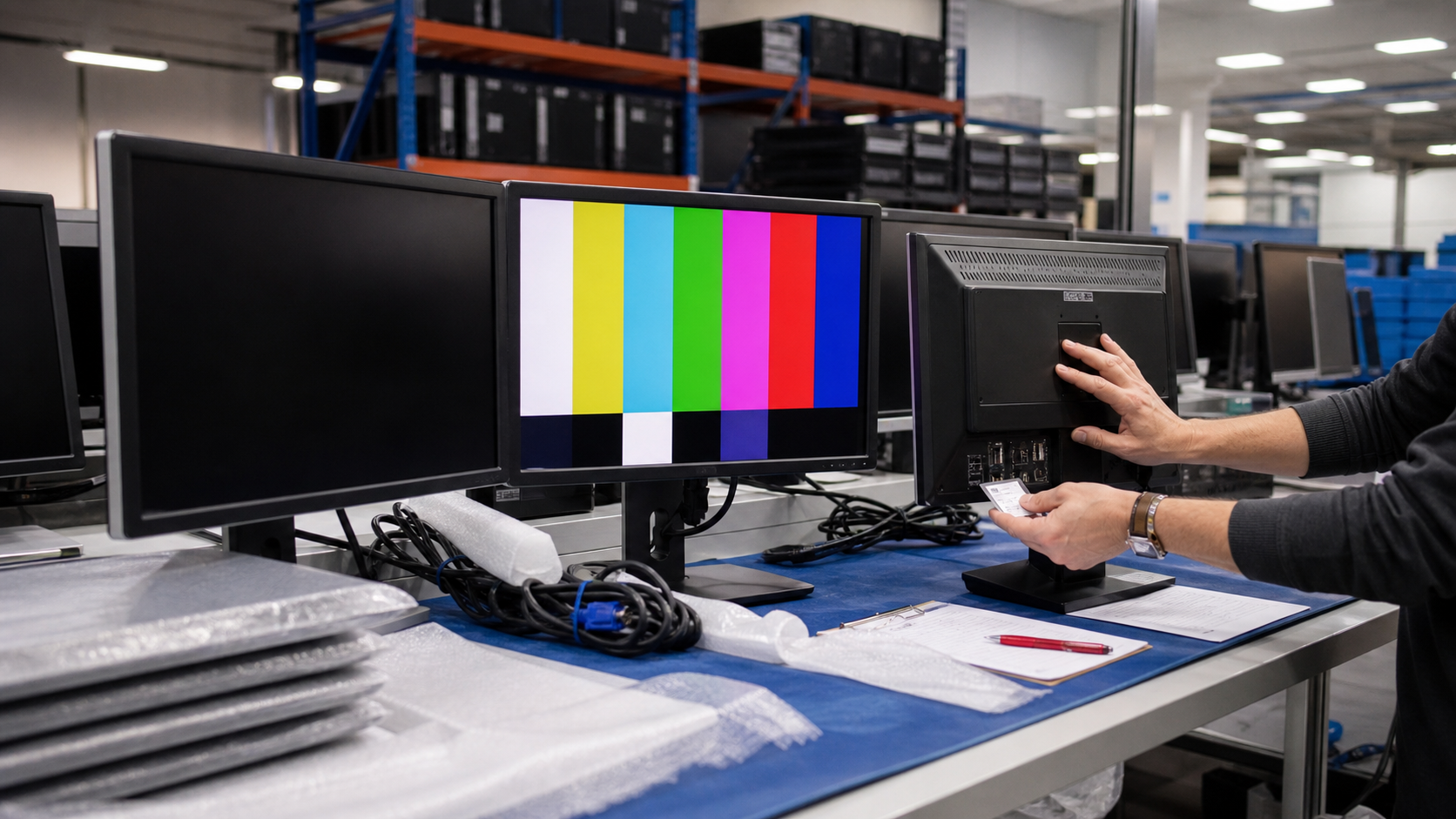
A monitor looks like a simple office purchase until a receiving team opens the pallet and finds the wrong ports, missing stands, mixed power supplies, scratched panels, or displays that do not match the desktop fleet. For one desk, that is annoying. For a 40-seat office refresh, it can slow down deployment and create extra returns.
TBR Trade Group works with buyers sourcing tested used enterprise hardware, corporate hardware upgrades, and mixed office electronics. Monitor requests are strongest when the quote includes the user profile, quantity, size range, resolution, port requirements, stand or mount plan, condition expectations, destination, and whether matched models are required.
Start With the User, Not the Screen Size
The right used monitor depends on the desk. Accounting, dispatch, sales, front office, engineering, medical admin, lab, warehouse, and classroom users do not all need the same display. A dual 24-inch 1080p setup can be practical for general office work. A 27-inch QHD display may be better for spreadsheets, dashboards, and multitasking. A color-critical design station needs a different conversation than a shipping desk.
Before shopping by price, decide what the monitor has to do all day. That keeps the order from turning into a random mixed lot of displays that look similar in photos but behave differently when deployed.
- Define the user group: office, call center, warehouse, lab, education, engineering, reseller, or spare inventory.
- Choose whether the order needs exact matched models, matched size only, or mixed acceptable units.
- List the target screen size, resolution, aspect ratio, and number of displays per workstation.
- Decide whether stands, height adjustment, VESA mounting, cables, and power supplies are mandatory.
Size and Resolution Should Match the Workload
For business buyers, size and resolution are not just comfort preferences. They affect desk layout, scaling, application fit, GPU output needs, cable choice, and shipping cost. A 24-inch 1080p display is common and easy to deploy. A 27-inch QHD display gives more workspace without jumping straight to 4K scaling concerns. 4K displays can be useful for design, finance, control rooms, and high-density dashboards, but they need compatible hardware and cables.
If the order is for a mixed office, do not assume every employee needs the largest panel. Monitors take desk space, increase packaging volume, and can complicate matching. The best bulk monitor order is usually the one that matches the work, not the one with the biggest spec line.
- Confirm 1080p, QHD, ultrawide, or 4K requirements before pricing.
- Check whether older desktops and docks can drive the selected resolution and refresh rate.
- Ask whether the buyer prefers standard 16:9 displays or accepts ultrawide and mixed aspect ratios.
- Separate ordinary office displays from color-sensitive, medical, CAD, or production display needs.
Ports Can Make or Break the Deployment
Display ports are one of the most common reasons a good-looking monitor order becomes a deployment problem. Older desktops may need VGA or DVI. Newer desktops and workstations may prefer DisplayPort or HDMI. Laptop fleets may need USB-C display input or a separate dock. Some setups require daisy chaining, USB upstream ports, built-in hubs, or speakers.
VESA describes DisplayPort as a high-performance digital display connectivity standard designed to support high resolutions, fast refresh rates, and deep color depths, with adapters available for older technologies such as DVI, HDMI, and VGA. For buyers, the practical point is simple: do not quote monitors in isolation. Quote the monitor, source device, cable, dock, and adapter plan together.
- List required ports: DisplayPort, HDMI, USB-C, DVI, VGA, mini DisplayPort, USB upstream, or audio.
- Confirm whether each monitor needs one cable, two cables, power cord only, or external power brick.
- Ask whether adapter use is acceptable or whether native ports are required.
- For dual-monitor stations, confirm the desktop, laptop dock, or GPU has enough outputs.
Stands, Mounts, and Ergonomics Matter
A tested panel can still be the wrong purchase if the stand is missing, wobbly, non-adjustable, or incompatible with the desk. OSHA's computer workstation guidance treats monitors as part of the workstation setup, not just a display device. Buyers should think about height, distance, glare, viewing angle, and whether users need portrait rotation, height adjustment, tilt, swivel, or VESA mounting.
For bulk orders, stands are a separate inventory question. Some monitors use proprietary bases. Some are easy to VESA mount. Some require an adapter plate. If a buyer is deploying monitor arms, the quote should specify VESA pattern, display weight, and whether original stands are included, excluded, or boxed separately.
- Confirm whether each unit includes the original stand, a compatible stand, or no stand.
- Check VESA mounting pattern if the order will use monitor arms.
- Ask whether height adjustment, tilt, swivel, or pivot is required.
- Plan for glare, desk depth, and dual-monitor alignment before approving a large order.
Condition Checks Should Focus on the Panel
Cosmetic wear on the housing may be acceptable for many used business monitor orders. Panel defects are different. Buyers should ask how the supplier checks for cracks, pressure marks, dead pixels, stuck pixels, scratches, brightness inconsistency, discoloration, flicker, burn-in, broken buttons, damaged ports, missing feet, damaged stands, and loose power connections.
TBR's hardware condition guide can help set practical language for cosmetic grade, tested working condition, missing accessories, and known limitations. The order should say whether minor casing scuffs are acceptable and whether any panel blemishes are allowed.
- Inspect the panel powered on, not just the housing.
- Check for pressure marks, scratches, cracks, dead pixels, discoloration, and backlight issues.
- Confirm buttons, OSD controls, stands, hinges, ports, and power inputs are functional.
- Document whether units are matched by model, size, resolution, stand type, or cosmetic grade.
Testing Should Be Clear and Repeatable
"Tested" should mean more than "it turned on once." For used monitors, practical testing can include power-on, input detection, image display, basic color or gray screen check, brightness check, port check, button check, stand stability check, and serial or asset-tag matching. Buyers do not need unrealistic promises, but they do need to know what was checked before shipment.
If the order is high volume, define whether every monitor is tested or whether the supplier is sampling a lot. For a deployment order, every unit should be tested and packed with the correct accessories. For reseller inventory, a different testing and grading arrangement may be acceptable if it is priced and documented clearly. TBR's warranty, testing, and returns page helps frame DOA expectations before hardware moves.
Packaging Is Part of the Product
Monitors are awkward to ship because the most important surface is also the easiest surface to damage. A display should not be packed with loose stands, cables, keyboards, power bricks, or metal parts touching the panel. Corners need cushioning. Screens need separation. Boxes or pallets need enough structure to prevent pressure across the display face.
For small parcel shipments, the box and cushioning matter. For pallets, screen orientation, wrap tension, corner protection, and labeling matter. If the order includes computers, docks, keyboards, power supplies, or other tested electronics, use TBR's ESD-safe computer component packaging checklist and shipping information to plan the mixed shipment.
- Separate panels from stands, bases, cables, power bricks, and accessories.
- Protect corners and avoid direct pressure on the screen surface.
- Label matched sets so receiving teams can reconcile units quickly.
- For international orders, confirm declared descriptions, quantities, packaging, and destination requirements.
Reuse Can Be a Practical Sustainability Move
EPA guidance says electronics contain valuable resources and materials such as metals, plastics, and glass, and that donation or recycling can conserve natural resources. EPA also advises users to consider upgrading hardware or software before buying new, delete personal information, remove batteries where needed, and recycle electronics safely.
That same thinking applies to business displays. A tested monitor that is still useful should not be treated as waste just because a company changed desk standards. EPEAT's current criteria for computers and displays include areas such as climate change mitigation, sustainable use of resources, chemicals of concern, and responsible supply chains. Buyers who care about sustainability should combine reuse with good testing, clear grading, and responsible end-of-life planning through pages such as TBR's secure e-waste disposal and IT asset recovery services.
Used Business Monitor Quote Checklist
Before approving a used monitor order, send the supplier enough detail to quote accurately:
- Quantity, destination, deadline, and whether units must be palletized or individually boxed.
- Required screen size, acceptable size range, resolution, aspect ratio, and refresh rate expectations.
- Required ports, cables, adapters, power cords, external power supplies, and USB upstream cables.
- Stand requirements: included stand, height-adjustable stand, VESA mount, no stand, or monitor arm compatibility.
- Condition expectations for panel, housing, buttons, ports, stand, labels, and cosmetic wear.
- Testing scope for power, image, ports, panel defects, controls, and stand stability.
- Whether exact matching is required by model, size, resolution, stand type, or cosmetic grade.
- Packaging expectations for screens, accessories, labels, mixed lots, and international shipment.
- DOA, replacement, return, and receiving timeline requirements.
If you are sourcing used business monitors, refurbished computers, tested components, workstations, or broader office electronics, send model targets, quantities, condition expectations, accessory needs, accepted substitutions, and destination when you request a quote from TBR Trade Group. For full office refresh planning, pair this checklist with TBR's refurbished business computers buying guide.
FAQ
Are used business monitors worth buying in bulk?
They can be, especially when the buyer needs affordable office displays, spare inventory, reseller stock, or matched equipment for a practical refresh. The order should define condition, testing, accessories, and packaging before purchase.
Should I require exact matching monitor models?
Exact matching is useful for standardized desks and easier support. Near-matched size and resolution may be enough for back-office use, training rooms, or reseller inventory. Decide this before pricing because exact matching can affect availability and cost.
What accessories should I ask about?
Ask about stands, bases, power cords, external power bricks, DisplayPort cables, HDMI cables, USB-C cables, USB upstream cables, adapters, and any required mounting hardware.
What panel issues matter most?
Cracks, pressure marks, deep scratches, dead or stuck pixels, flicker, backlight problems, discoloration, and port failures matter more than ordinary casing scuffs for most business orders.
Source Notes
- ENERGY STAR Product Finder: ENERGY STAR provides a product finder for comparing certified products, including display-related product searches.
- EPEAT Criteria: EPEAT 2.0 criteria apply to Computers & Displays and include climate change mitigation, sustainable use of resources, chemicals of concern, and responsible supply chain criteria.
- EPEAT for Purchasers: EPEAT describes its registry and criteria transition as a responsible procurement resource for buyers in many countries.
- EPA Electronics Donation and Recycling: EPA explains that electronics contain valuable metals, plastics, and glass, and advises safe reuse, donation, recycling, data deletion, and battery handling.
- VESA About DisplayPort: VESA describes DisplayPort as a scalable high-performance display connectivity standard and notes adapter support for older display technologies.
- OSHA Computer Workstations: Monitors: OSHA's workstation eTool treats monitor placement and viewing setup as part of computer workstation ergonomics.