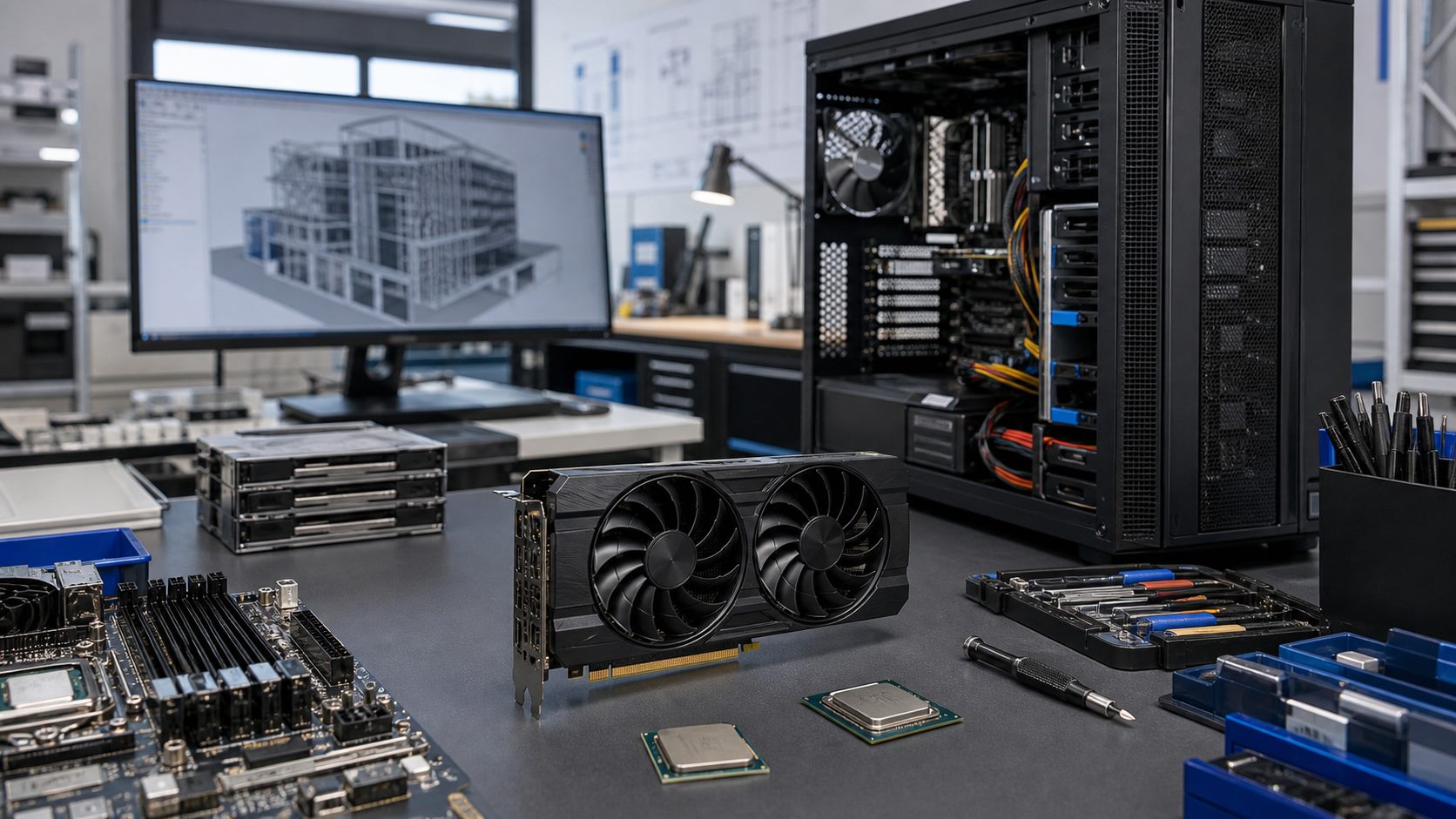
Engineering teams often know a workstation feels slow, but not every slowdown has the same cause. Before buying hardware, identify whether the bottleneck is graphics, CPU, memory, storage, or aging platform compatibility.
Match Hardware to Software
CAD, BIM, rendering, and simulation tools stress systems differently. Some workloads benefit most from GPU memory and driver stability. Others need CPU cores, RAM, or fast local storage.
Check These Upgrade Areas
- GPU memory, display outputs, thermal limits, and driver support.
- CPU generation and motherboard compatibility.
- RAM capacity for large assemblies and models.
- NVMe or SSD storage for project load times.
Procurement Notes
Engineering buyers should define the primary application before choosing parts. A rendering-heavy workstation may benefit from a different GPU or CPU balance than a CAD workstation focused on viewport responsiveness. Large assemblies and simulation workflows may require memory capacity before graphics upgrades deliver their full benefit.
It also helps to separate individual power users from standard workstation fleets. A small number of engineers may need higher-memory GPUs, while the broader team may be better served by storage and RAM upgrades. That distinction keeps budgets focused where the performance gain is real.
Common Mistakes to Avoid
- Buying a GPU that does not fit the workstation chassis or power supply.
- Ignoring driver support for professional applications.
- Upgrading graphics while leaving the system short on RAM.
- Choosing parts only by benchmark score instead of actual software workload.
For sourcing help, visit our professional engineering workstation hardware page.